
Team boards are where leaf cards move through status columns. Open a board from the canvas or toolbar, drag cards to update status, and open the same card detail pane you use on the map.
Open a team board
Hover the accountable team name at the bottom of a canvas card (for example Dev) to see where the team comes from and whether you can open the board from here. When the card is on the team board (including Backlog), click the team name to open that team board and scroll to the card when possible.
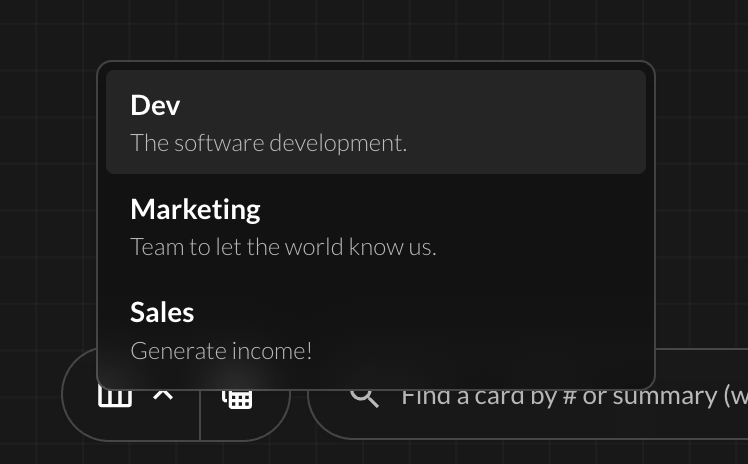
You can also use Progress Boards on the canvas toolbar at the bottom: open the dropdown and pick a team. Each entry shows the team name and description.
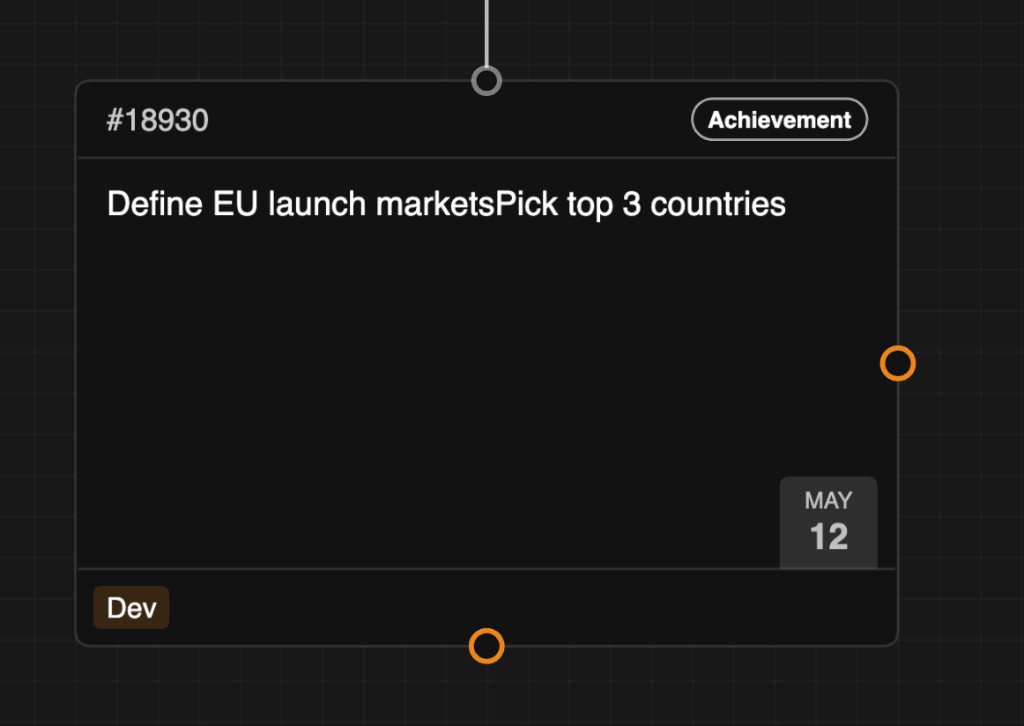
This team is assigned on this card. Click to open the team board.
Move cards between columns
Drag a card from one column to another to change its status. Cards stack from the top of each column; order within a column is saved automatically.
On a Kanban board, a typical flow is Backlog, then Planned, then Work in Progress, then Done. New leaf cards usually start in Backlog. If your team set WIP limits in board settings, a full column blocks drops from other columns until cards move out.
Work in Progress can show sub-status columns (for example Implement and QA) when configured under Board setup.
Backlog and Done show the most recent cards. Use View all backlog cards or View all done cards to open the full list in All Cards.
On a Scrum board, you cannot drag cards while viewing a completed or cancelled iteration. Switch to an active or scheduled iteration to move work.
Click any card on the board to open the card detail pane.
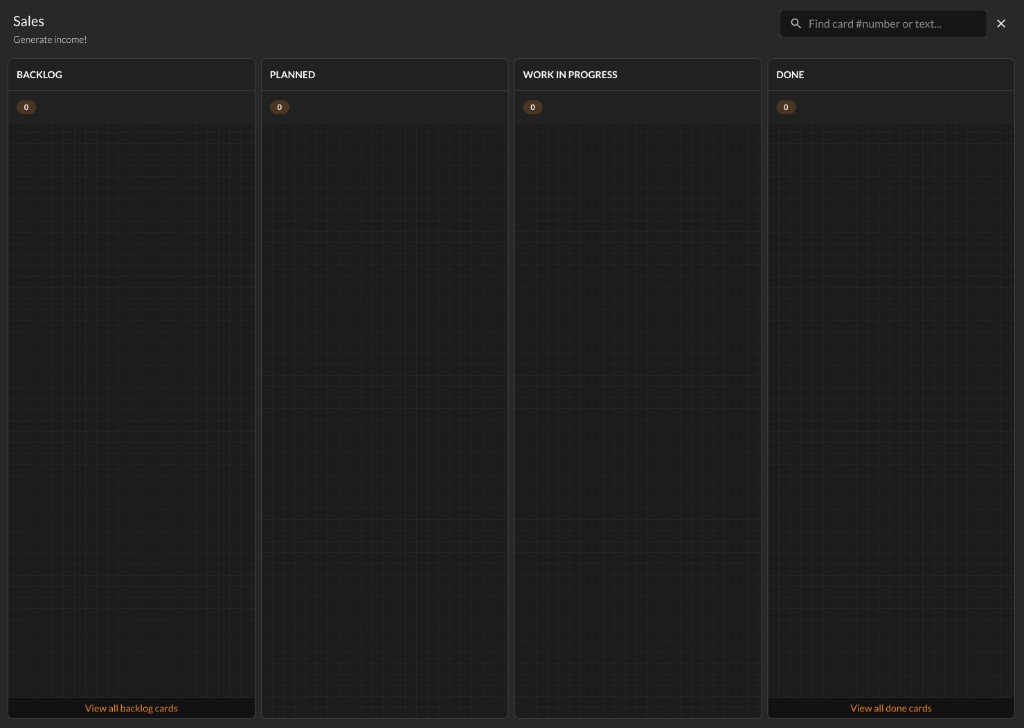
Drag a card from Planned to Work in Progress, then to Done. Cards stack from the top of each column. Kanban boards use Backlog, Planned, Work in Progress, and Done.
Create your first iteration
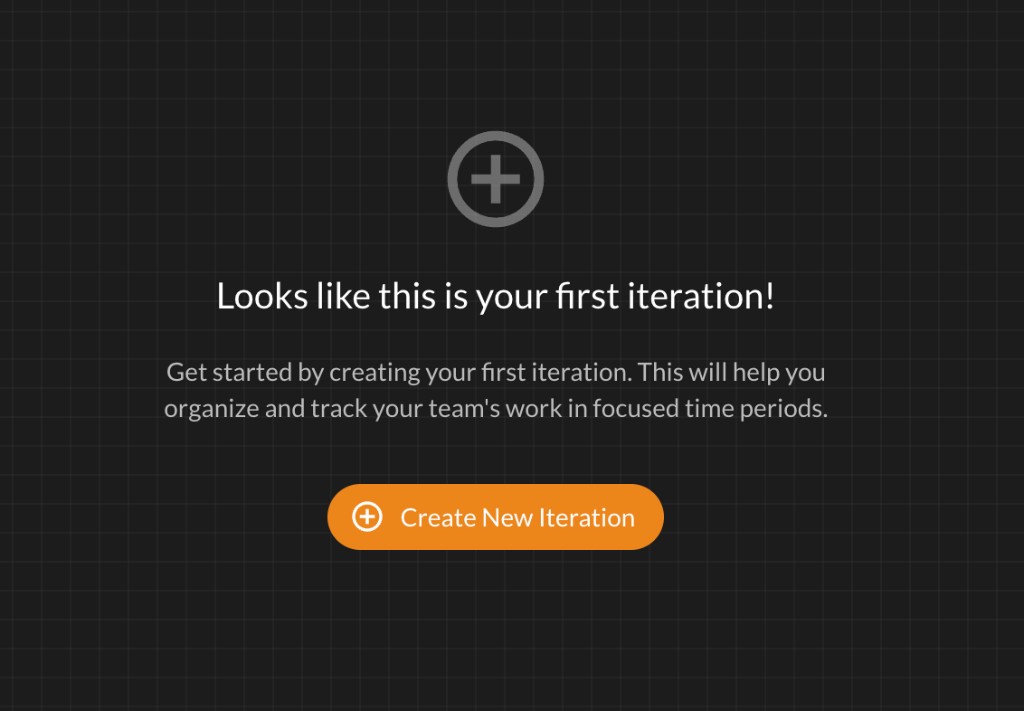
When you open a Scrum team board and no iterations exist yet, the board prompts you to create one. Click Create New Iteration, set the name and dates, then save.
After the first iteration exists, the board shows columns for the selected iteration. Configure iteration length and start day under Board setup if you have not already.
Switch and manage iterations
Use the iteration dropdown at the top of the board to switch which sprint you are viewing. The board columns reflect the selected iteration.
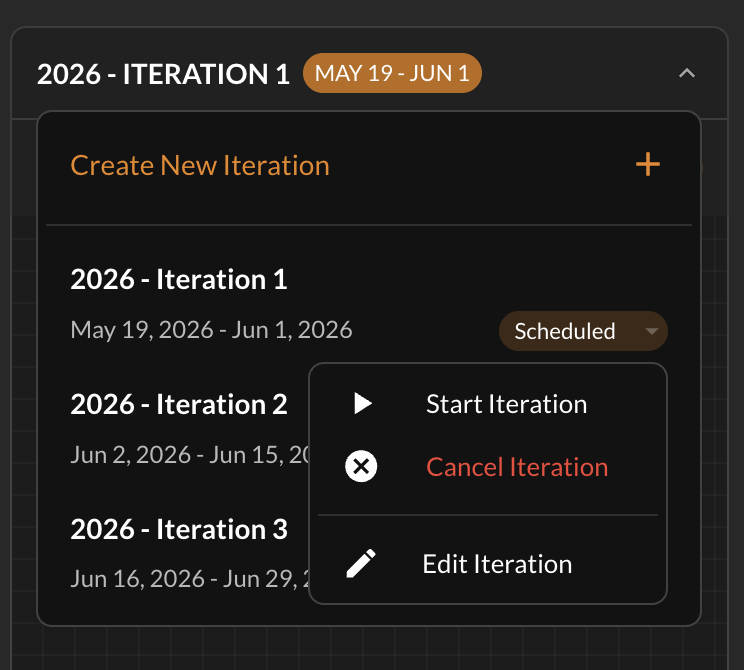
Create New Iteration at the top of the list adds another sprint. Pick any iteration in the list to switch the board to that time period.
Open the status menu on an iteration row (for example Scheduled) to manage it:
- Start Iteration moves a scheduled sprint to active when today falls within its dates and no other iteration is already active.
- Edit Iteration changes the name or dates (not available for completed or cancelled iterations).
- Reactivate Iteration is available for some cancelled iterations when dates still allow it.
Only one iteration can be active at a time. Drag cards into Iteration Backlog to assign them to the selected iteration. Drag to Backlog to pull them out of the sprint.
See Completing or cancelling an iteration below for undone cards and Done cards.
Completing or cancelling an iteration
Mark as Complete on an active iteration closes that sprint.
If every card in the iteration is already in Done, the iteration completes immediately.
If any cards are not in Done, Yirar shows Incomplete Cards Found. Incomplete means any card still in Backlog, Iteration Backlog, Work in Progress, or a WIP sub-status. Cards already in Done stay in Done. They are not moved.
Choose where to send the incomplete cards:
- Move to next iteration assigns them to the next scheduled sprint and keeps their current column (for example a card in Work in Progress stays in Work in Progress in the new iteration). This option appears only when a next iteration already exists.
- Move to backlog removes those cards from the sprint. They return to the team backlog and keep their column status on the board.
- Create new iteration makes a new sprint and moves incomplete cards into it, again keeping their current column.
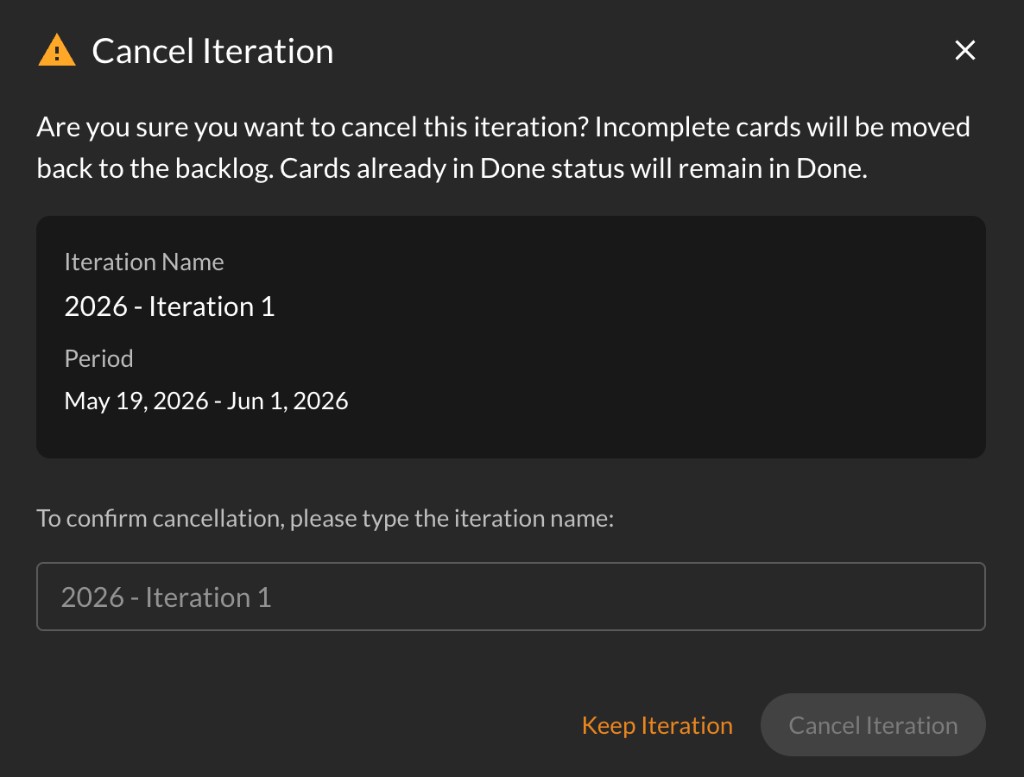
Cancel Iteration (for Scheduled or Active sprints only) works differently. Yirar asks you to confirm by typing the exact iteration name. Incomplete cards move to backlog automatically. Cards already in Done stay in Done. You do not pick a destination in a dialog.
Search on the board
Use the search field at the top of the board to find a card by summary text or by number (type `#` and the issue number). Select a result to scroll the board to that card.