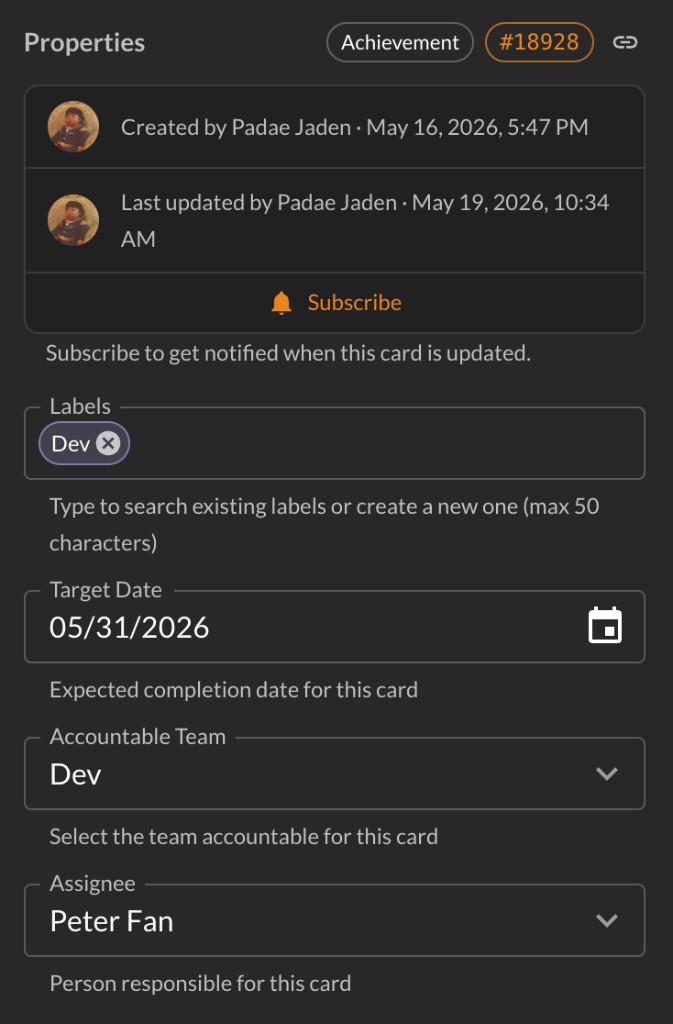
Click a card summary on the canvas or on a team board to open the card detail pane. The summary and properties save as you change them. The description uses Edit and Save so unfinished drafts are not saved by accident.
Open the detail pane
Click the card summary on the canvas. The pane slides in from the right. Drag the left edge to resize it. Click the link icon in the header to copy a URL to this card. You can also open a card from All Cards or search results.
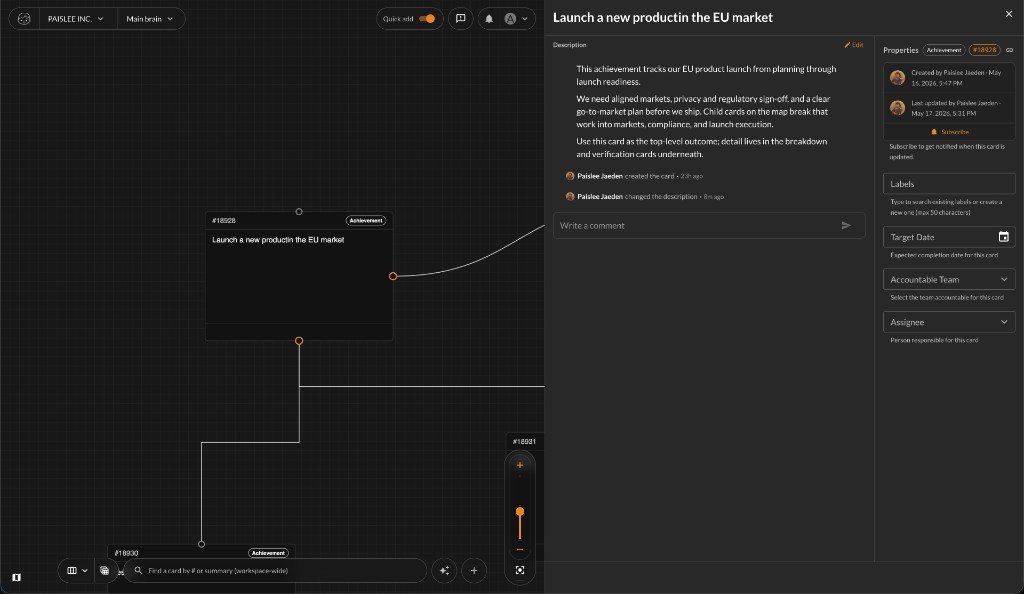
Summary and description
Edit the summary at the top. Changes save automatically.
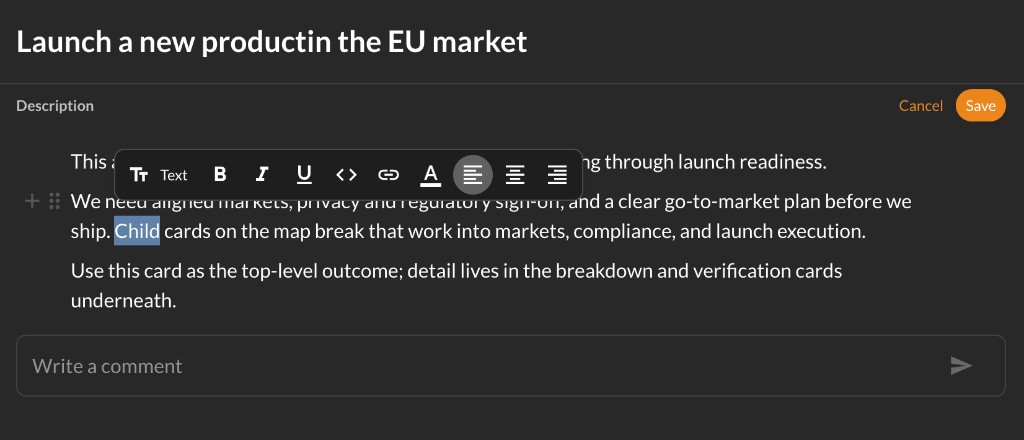
The description starts in view mode. Click Edit to change it. When you are done, click Save. Use Cancel to discard changes and return to the last saved version. This keeps half-finished text off the card until you choose to save.
While editing, select text to open the formatting toolbar (bold, italic, underline, links, code, color, and alignment). Type / to open the insert menu for headings, lists, checklists, and other blocks. In view mode you can still tick checklist items without opening full edit mode.
Paste or attach files in the description (images and other uploads). Image attachments can be Set as cover when they are large enough. The cover shows on the canvas card and in the detail pane header area.
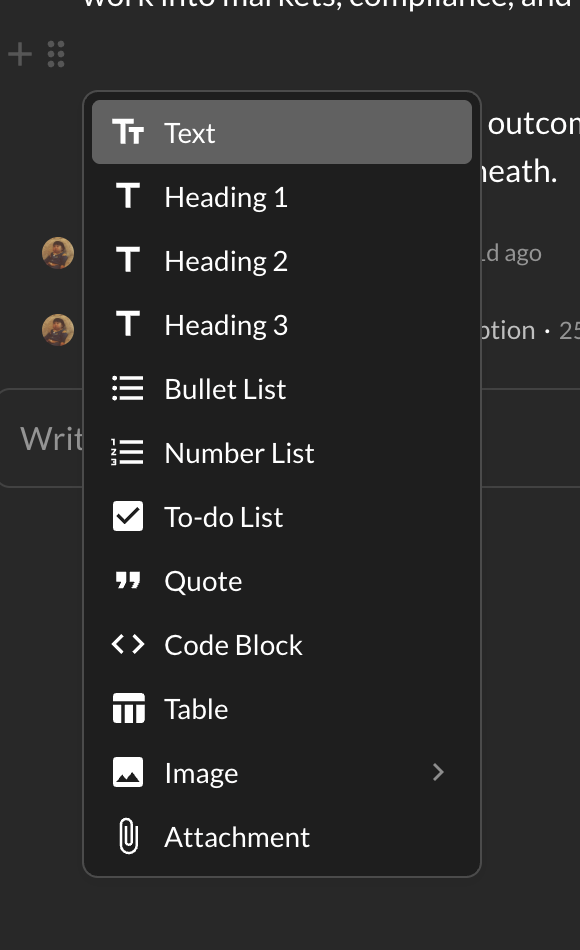
Type / to insert blocks
Activity, comments, and notifications
Below the description you see Activity: a timeline of changes to the card (status, team, labels, cover image, and more) plus comments from teammates.
Use the comment box at the bottom to add a comment. Type @ to mention someone. Mentions and follows feed the notifications bell in the top bar. Click a notification to open the card (and comment when applicable).
Follow on the card (in Properties) for team activity (bell when teammates change the card) and progress (schedule checks on this card and its subtree on the map). Manage all follows from your avatar menu under Following.
Properties
The Properties section lists metadata and fields that save automatically when you change them.
Parent links to the card above in the tree. View on lists other canvases where this card appears. Labels tag the card for filtering. Target Date sets a deadline (see the target dates guide). Accountable Team assigns execution ownership. Assignee is the person doing the work.
Show on team board is always listed in Properties. On leaf cards you can turn it off to hide the card from the board list while keeping it on the canvas. On parent cards with achievement children below, the switch is shown but disabled (verification-only children do not block it).