
The canvas is your shared map of achievement and verification cards. This guide covers switching workspaces and canvases, the bottom toolbar, moving around the map, selecting cards, and the card menu.
Workspace and canvas switchers
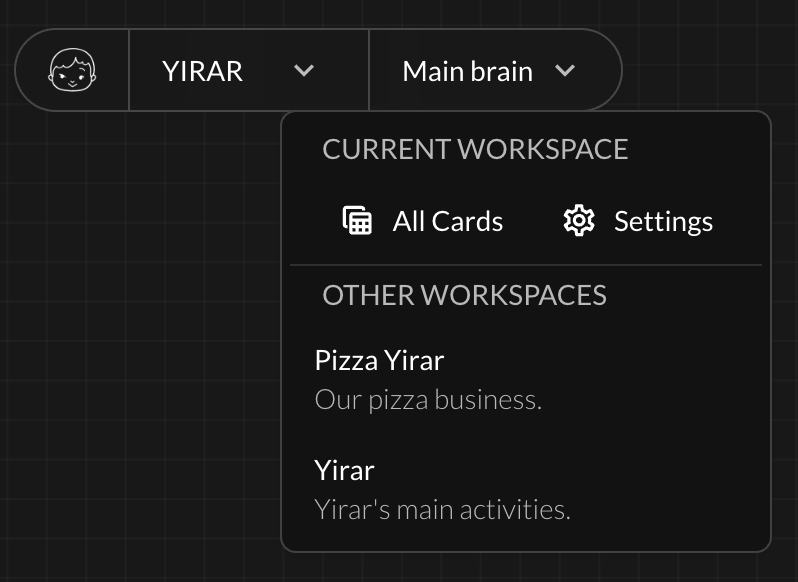
Use the workspace switcher in the top bar to change organization or open All Cards and Settings. The canvas switcher shows the current map name. Private canvases show a lock icon in the list.
Bottom toolbar
Progress Boards opens a team board. The table icon opens All Cards for the workspace. Search finds a card by number or summary. The sparkle button opens the map Advisor. The + button adds a root achievement card at the center of the canvas.

Pan, zoom, and minimap
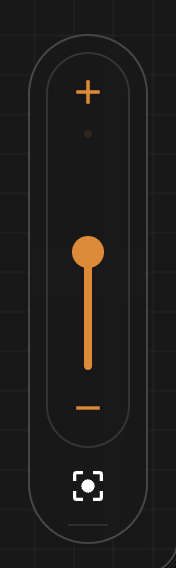
Drag empty space to pan, or hold Space and drag anywhere on the canvas (same as many design tools). Scroll to zoom. Use the zoom controls at the bottom right to adjust level or fit the view.
The minimap in the bottom-left shows the viewport; drag it to jump around. Use the map icon at the bottom left to show or hide the minimap.
Selecting cards
Command and click on Mac, or Ctrl and click on Windows or Linux, on a card to select that card and all descendants underneath.
Shift and click adds or removes individual cards from the selection without pulling in children. Drag any selected card to move the group.
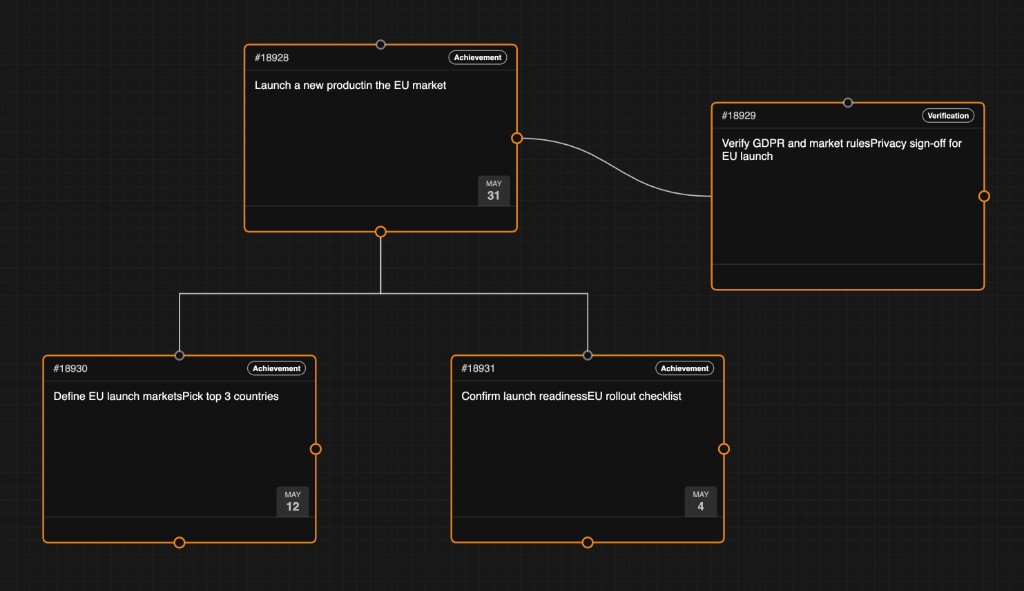
Open the card menu (⋯) and choose Select tree when the card has children. The screenshot below shows a connected tree; use the shortcuts above to build a selection.
Card menu
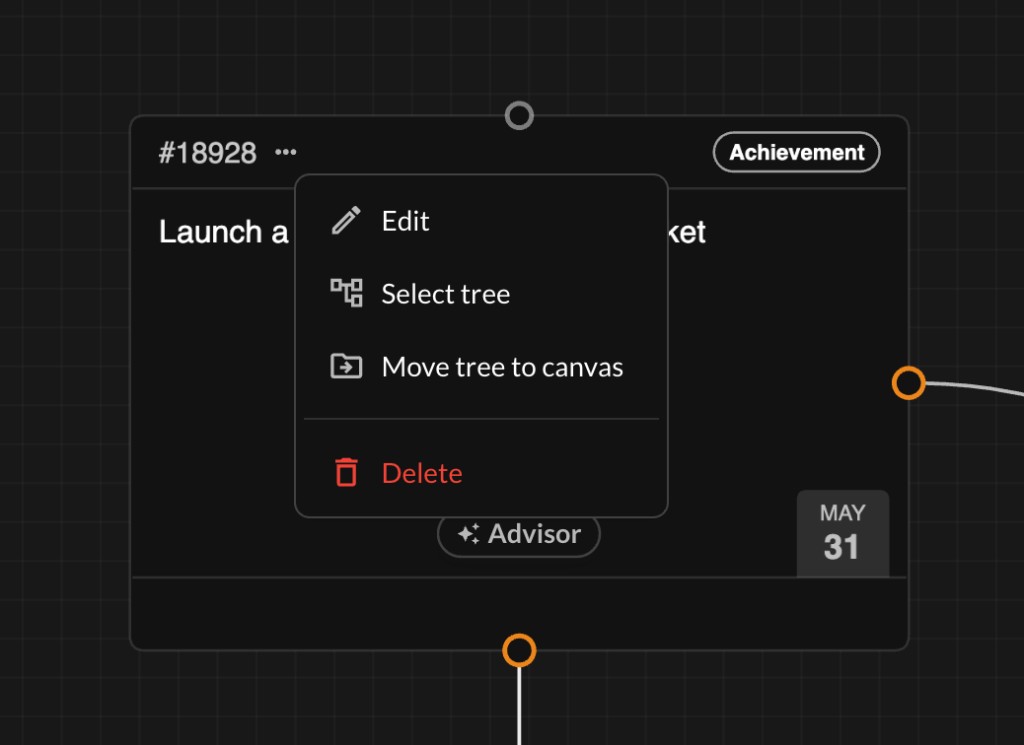
Hover a card and open the ⋯ menu. Edit opens the card detail pane. Select tree selects the card and all descendants. Move tree to canvas lets you move the subtree to another canvas. Delete sends the card or tree to Trash.
After delete, a short Undo action appears for about six seconds. Use it to restore the card (or tree) before it moves to Trash. After that, recover work from All Cards with scope Trash.
Canvas notes
Map notes are lightweight text blocks on empty canvas space. They are not cards: they do not get card numbers, team boards, or Advisor threads.
Right-click empty space on the map to add a note or a new root card (see in-app Features and Tips on the canvas). Open a note to edit its text in a dialog. Drag to reposition and resize the note width. Delete removes the note from the canvas.