This guide is for your first workspace. You will create the workspace, land on a ready-to-use canvas, add and break down cards, add verification when needed, open the detail pane to flesh out each card, then connect teams, the team board, target dates, and day-to-day execution.
Sign in
Open the app and sign in with Google or email. If you were invited to an existing workspace, use the link from your email instead.
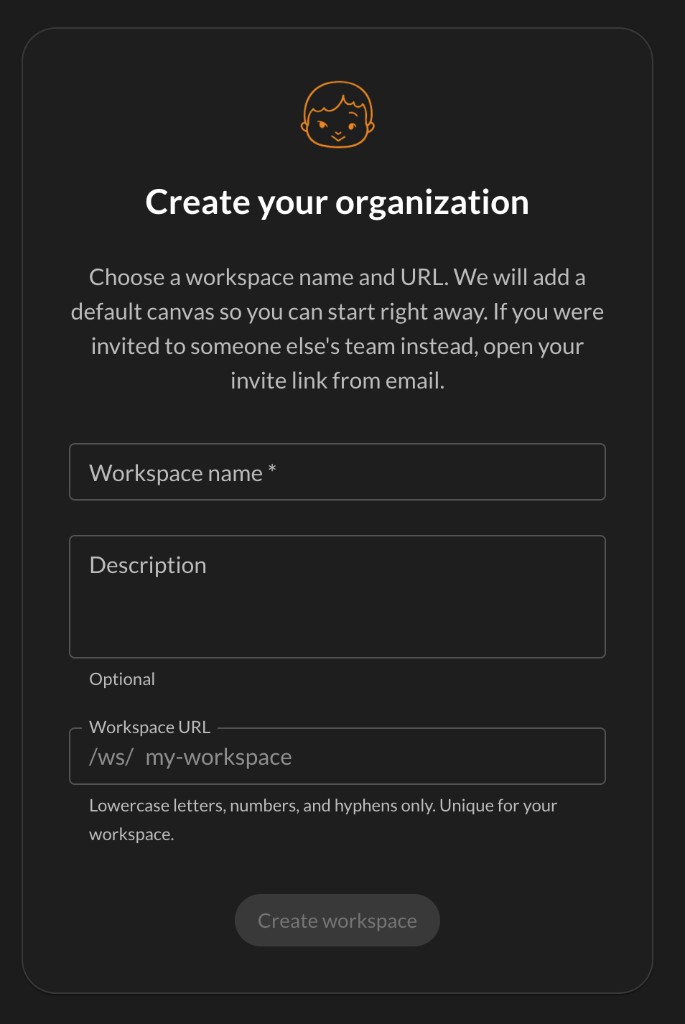
Create your workspace
The first time you join, you name your organization. We create a default canvas and a team automatically so you can open the map and start adding achievement cards right away. No extra setup.
Add your first achievement card
On an empty canvas, click the + button at the bottom center and type a summary for your top-level goal. That card is an achievement card: the kind you use to break work down into smaller pieces.
Drag from the bottom handle on an achievement card to add child achievement cards underneath.
Drag to add child achievement cards
Drag from the bottom handle on an achievement card to add a child achievement underneath. Release, name it, and add siblings the same way when you need parallel branches.
Keep breaking work down
You can do this on any achievement card, not only the top one. Drag from the bottom handle on a child card to add another level underneath. Keep going until each card is small and clear enough to act on.
Add verification cards from the right handle
When you need checkpoints or proof, drag from the right handle on an achievement card. That adds a verification card to the side, linked with a curved line. Use these for compliance, reviews, or done criteria tied to the work on the left.
Verification links use curved lines to the side. Drag from the right handle on an achievement or verification card to add the next checkpoint.
Build verification in layers
Drag from the right handle on a verification card to extend the same thread. You can add several verification cards from one parent, including branches, until the evidence path is as detailed as you need.
Open the card detail pane
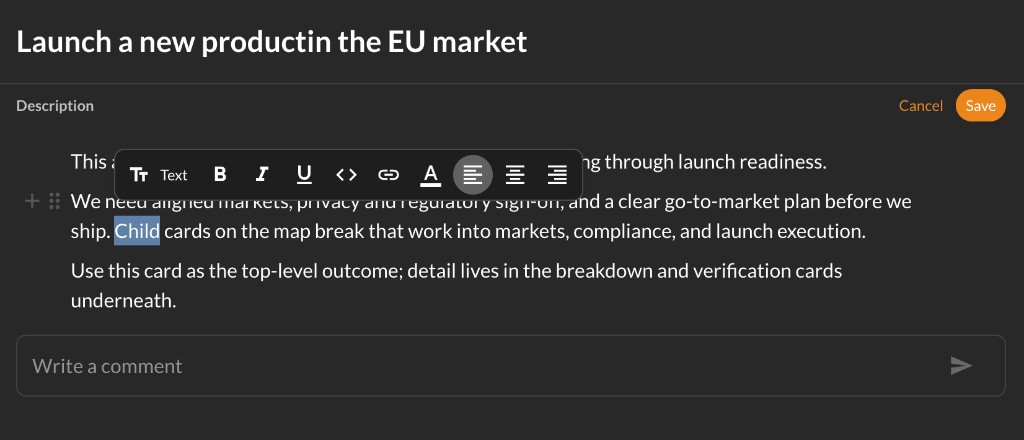
Click a card summary on the canvas. The detail pane slides in from the right. Drag the left edge to resize it. Edit the summary, set properties, and flesh out the card from here. For description editing, formatting, and subscribe, see Card detail pane in Help.
Important
Teams and the team board connect canvas structure to day-to-day execution. These two ideas matter once you assign accountable teams on cards.
Accountable team inherits down the tree
Set an accountable team on a parent achievement card. Child cards below inherit that team until you override it on any card mid-branch. See Accountable teams in Help for inheritance, overrides, and Show on team board.
Accountable team flows from parent to child and to linked verification cards. Override on any card to change the team for that card and everything below it.
Cards without children land on the team board
Leaf cards with an accountable team appear on that team board by default, usually in Backlog. Parents with achievement children stay on the canvas only. Turn off Show on team board on a leaf when work is not ready or you want a cleaner backlog.
Leaf achievement and verification cards with an accountable team show on the team board. Turn off Show on team board when work is not ready, scope is still shifting, or you want a cleaner backlog.
Open the team board
Click the accountable team name on a card or use Progress Boards on the canvas toolbar to open a team board. See Using the team board in Help for search, Scrum iterations, and column details.
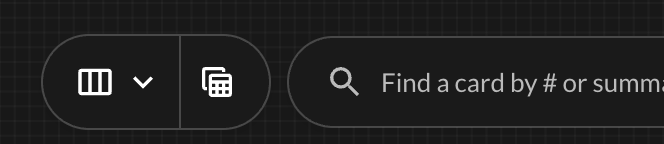
Progress Boards on the canvas toolbar opens a team board. Use the dropdown to choose which team.
Click a card's accountable team name on the canvas to open that team's board and locate the card.
Move work on the team board
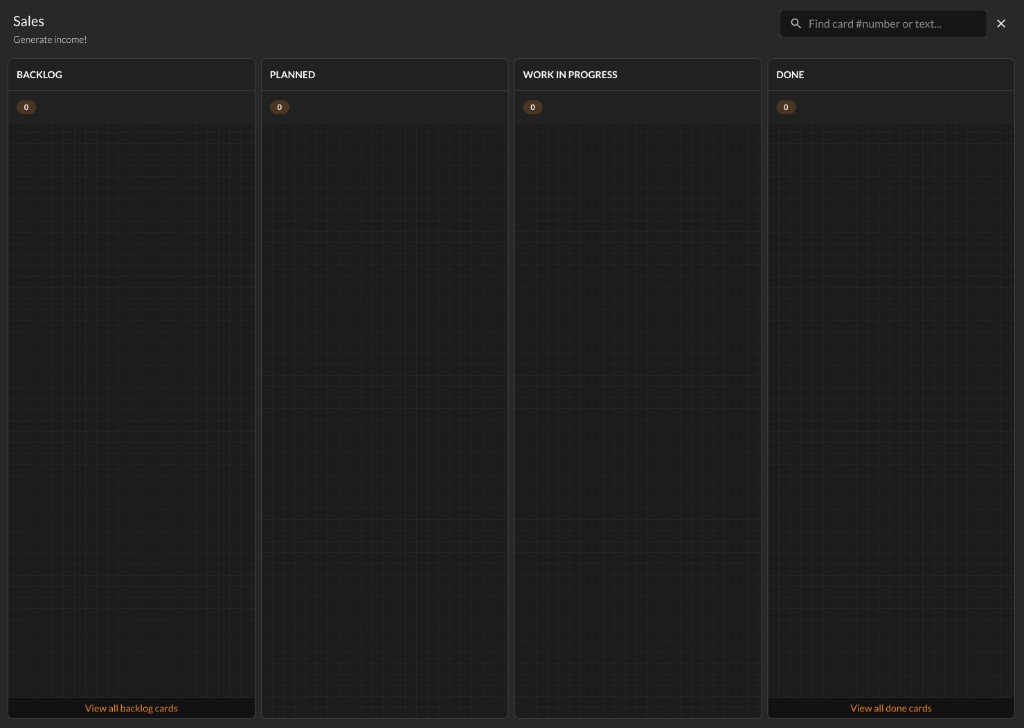
Drag cards between columns to change status. On Kanban, a typical flow is Backlog through Planned, Work in Progress, and Done. Scrum teams create and select an iteration first. See Using the team board in Help for iteration setup and switching.
Drag a card from Planned to Work in Progress, then to Done. Cards stack from the top of each column. Kanban boards use Backlog, Planned, Work in Progress, and Done.
Set a target date
Open a leaf card on the canvas or from the board and set Target Date in the detail pane. Dates show on the map so deadlines are visible in the tree. See Target dates in Help for the calendar, parent alignment warnings, and tips.
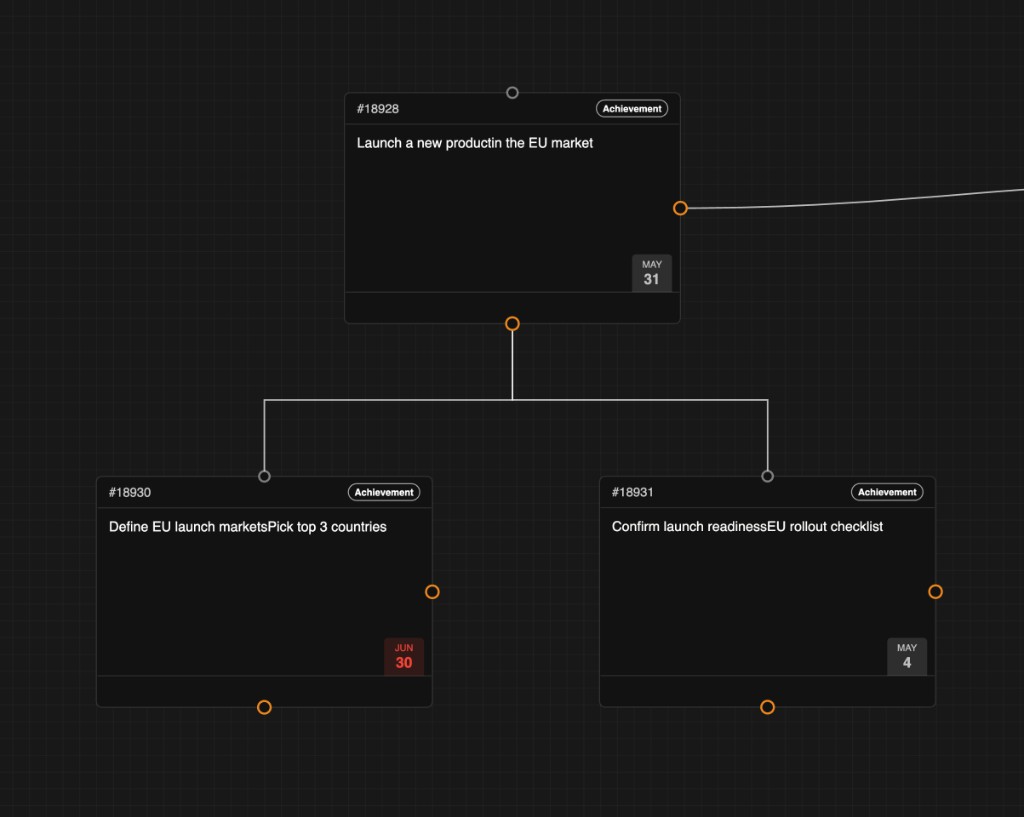
Target dates show on cards in the tree after you set them in the detail pane.
What's next
You have the core loop: structure on the canvas, execution on the team board, and dates on cards. When you want more, use the Help center for deeper guides.
- Help center
Browse all topic guides by area.
Summary, description (Edit and Save), rich text formatting, properties, and subscribe.
Set dates in the detail pane, alignment warnings, and badges on the canvas.
Team inheritance, leaf cards on the board, and Show on team board.
Open a board, drag cards, Scrum iterations, and board search.
Kanban vs Scrum, columns, WIP limits, and iteration settings.
Open the Advisor from the map or a card, modes, apply actions, and workspace settings.
General settings, canvases, labels, teams, members, and integrations.
Find any card in the workspace, filter the list, and restore deleted cards.
- Help center