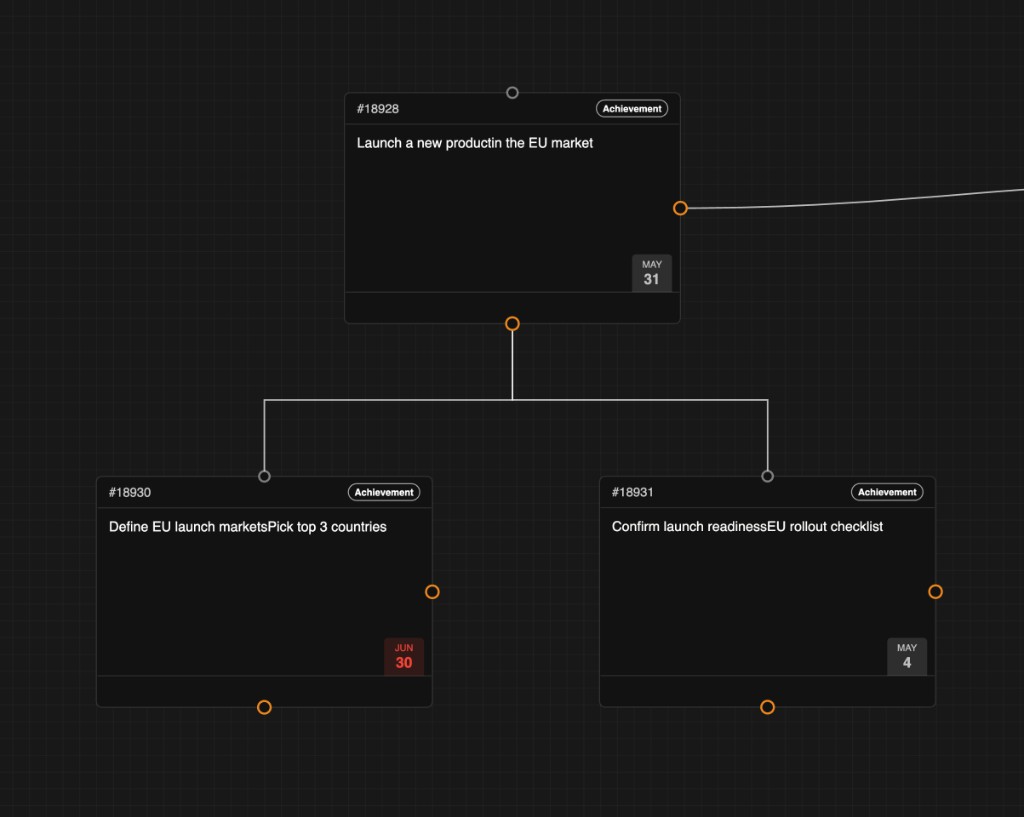
Target dates put a visible deadline on a card. They appear in the detail pane and as badges on the canvas. Yirar warns you when a child date is later than a parent so the tree stays coherent.
Set a target date
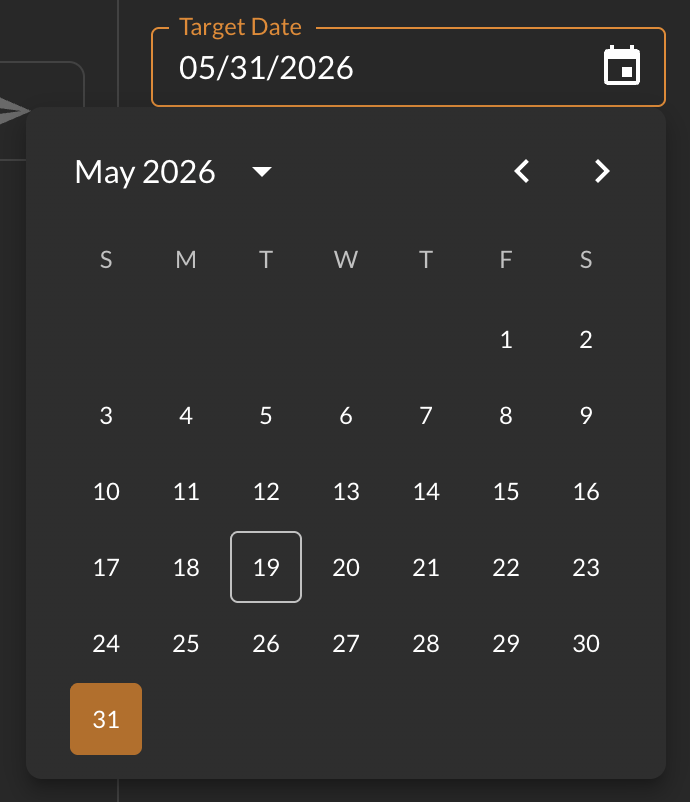
Open a card and find Target Date in the properties column. Pick a date from the calendar. The value saves with the rest of the card.
Parent and child alignment
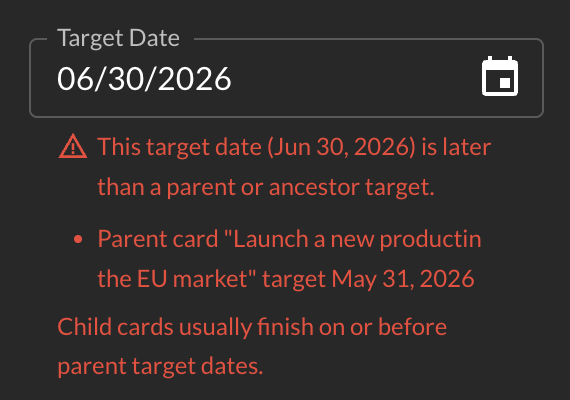
If a card target date is later than a parent or ancestor target, Yirar shows a warning in the pane. It names the parent card and date. Child cards usually finish on or before parent target dates. Adjust dates until the warning clears.
Dates on the canvas
After you save, the date appears as a month and day badge on the card on the map. Parent and child cards can show different months so you can spot misalignment at a glance.