Yirar uses two card types on the canvas. Each card shows a type label in the corner: Achievement or Verification. Achievement cards break work into smaller pieces. Verification cards capture proof, reviews, and done criteria beside the work they support.
Add child achievements
Drag from the bottom handle on an Achievement card to add a child achievement underneath. The link is a straight vertical line. You can keep breaking work down on any achievement until each card is small enough to act on.
Drag from the bottom handle on an achievement card to add child achievement cards underneath.
Add verification cards
Drag from the right handle on an Achievement card to add a Verification card to the side. The link is a curved line. Drag from the right handle on a Verification card to extend the same verification thread with more checkpoints.
Verification links use curved lines to the side. Drag from the right handle on an achievement or verification card to add the next checkpoint.
Quick add mode
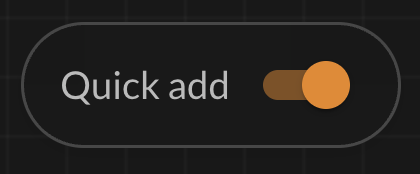
Use the Quick add toggle in the top bar to choose how you name new cards after you drag from a handle or use the + button.
With Quick add on, a placeholder card appears on the canvas and you type the summary there. Press Enter to create the card.
With Quick add off, the placeholder still appears on the map, but the card detail pane opens so you can enter the summary in the pane instead.